Showing posts with label Azure. Show all posts

Thursday, October 26, 2017

How to Login to Azure using PowerShell?

The Azure PowerShell cmdlets support two authentication techniques: AAD (Azure Active Directory) and self-signed X.509 certificates. AAD authentication can be used for both the classic Azure Service Management (ASM) mode and the new Azure Resource Manager (ARM) mode of the Azure. Certificate authentication can be used only for ASM mode.

Here we will using AAD to get into our Azure subscription. For this to work you should be an Administrator or Co-administrator for relevant subscription. More info related to Azure Access rights can be found here  http://rajeshkamalakshan.blogspot.in/2017/08/managing-azure-subscriptions-and-access.html .

If you don’t have AAD module installed then the same can be installed as below

In Powershell Run

Install-Module AzureAD

Once the above module is installed run the below command in power shell. This cmdlet prompts you for the login credentials for your Azure account. After logging in, it downloads your account settings so they are available to Azure PowerShell.

Add-AzureAccount

Once logged in successfully , if necessary, the following Azure cmdlets can be used to select the desired subscription

Get-AzureSubscription
Select-AzureSubscription -SubscriptionName "SomeSubscription"

There are other ways to login to Azure subscription  by using  Login-AzureRmAccount. This will work only forAzure Resource Manager”(ARM).but the above approach works for both ASM and ARM

More Reading

Wednesday, August 9, 2017

Managing Azure Subscriptions and Access Rights

What is Azure Subscription
A Windows Azure subscription grants you access to Windows Azure services and to the Windows Azure Platform Management Portal. It’s also called as an active agreement with Microsoft which is needed to provision resources in Microsoft Azure. 
A Windows Azure subscription has two aspects:
  • The Windows Azure account, through which resource usage is reported and services are billed.
  • The subscription itself, which governs access to and use of the Windows Azure services that are subscribed to. The subscription holder manages services (Windows Azure , SQL Azure, Storage etc)  through the Windows Azure Platform Management Portal
Azure subscription are managed using admin accounts . there are three types of admin accounts


Administrative role Limit Description
Account Administrator (AA) 1 per Azure account This is the person who signed up for or bought Azure subscriptions, and is authorized to access the Account Center and perform various management tasks. These include being able to create subscriptions, cancel subscriptions, change the billing for a subscription, and change the Service Administrator.
Service Administrator (SA) 1 per Azure subscription This role is authorized to manage services in the Azure portal. By default, for a new subscription, the Account Administrator is also the Service Administrator.
Co-administrator (CA) in the Azure classic portal 200 per subscription This role has the same access privileges as the Service Administrator, but can’t change the association of subscriptions to Azure directories.

Each Azure subscription is associated with one Azure Active Directory (AD) directory. Users, groups, and applications from that directory can manage resources in the Azure subscription. Assigning of  these access rights are done through Azure portal, Azure command-line tools, and Azure Management APIs.
This document emphasizes on managing rights through Azure Portal.

Resource hierarchy and access inheritance
·         Each subscription in Azure belongs to only one directory. (But each directory can have more than one subscription.)
·         Each resource group belongs to only one subscription.
·         Each resource belongs to only one resource group.


To  find the Default Directory the subscription is associated with, go to the Azure classic portal, select Settings > Subscriptions.


To view Azure billing information and manage subscriptions, you must sign in to the Account Center as the Account Administrator.

Click on the “ACCOUNT CENTER” to manage subscription 


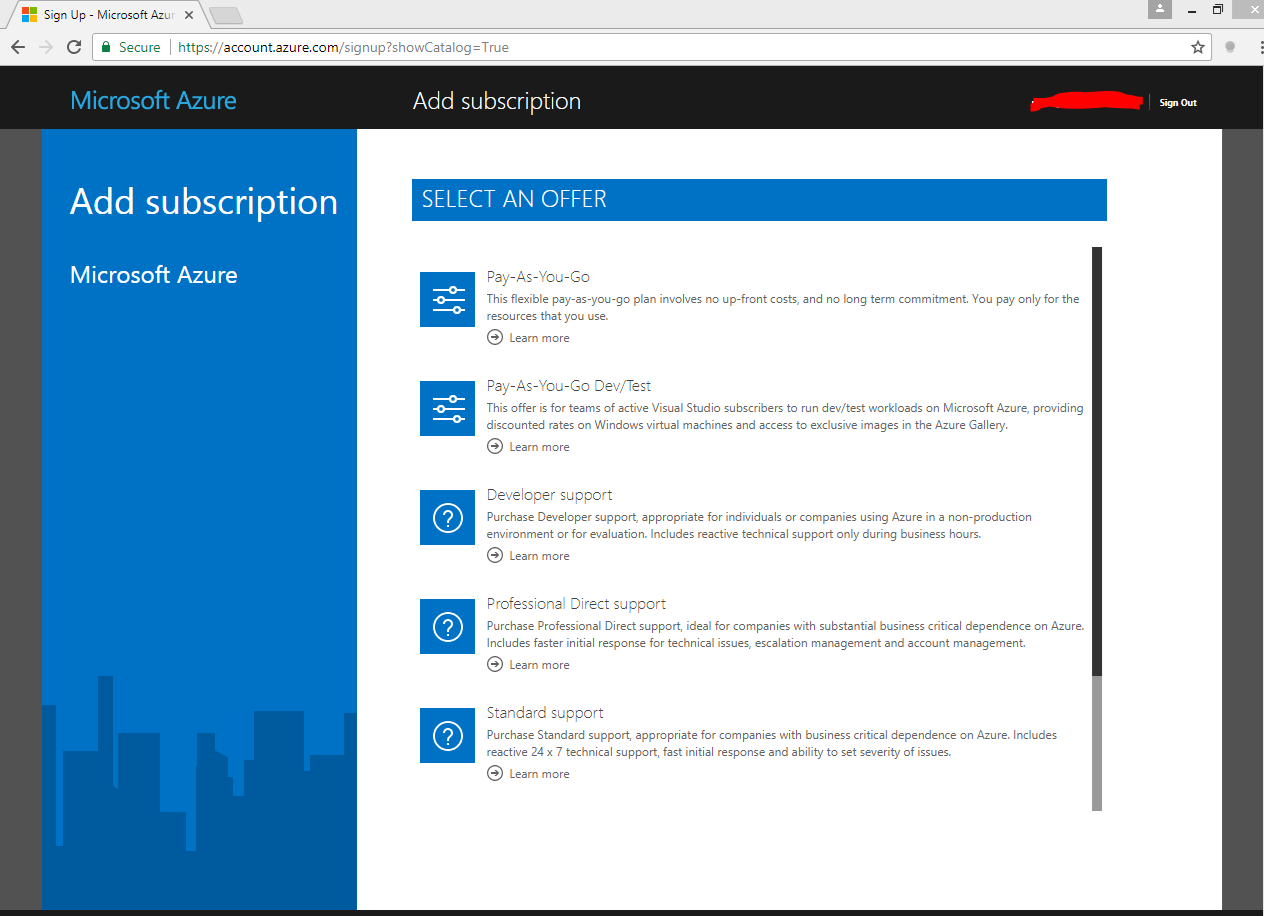
Click on the “add subscription” to create new subscription 


Click on the  appropriate subscription type to create one.


Azure RBAC has three basic roles that apply to all resource types:
·         Owner has full access to all resources including the right to delegate access to others.
·         Contributor can create and manage all types of Azure resources but can’t grant access to others.
·         Reader can view existing Azure resources.

The rest of the RBAC roles in Azure allow management of specific Azure resources. For example, the Virtual Machine Contributor role allows the user to create and manage virtual machines. It does not give them access to the virtual network or the subnet that the virtual machine connects to. A full list of roles can be found here https://docs.microsoft.com/en-us/azure/active-directory/role-based-access-built-in-roles

If required we can also build custom roles as described here  https://docs.microsoft.com/en-us/azure/active-directory/role-based-access-control-custom-roles

Access Rights are granted by assigning the appropriate RBAC (Resource Based Access Control) role to users, groups, and applications at a certain scope. The scope of a role assignment can be a subscription, a resource group, or a single resource. A role assigned at a parent scope also grants access to the children contained within it. For example, a user with access to a resource group can manage all the resources it contains, like websites, virtual machines, and subnets.

Azure Role-Based Access Control (RBAC) enables fine-grained access management for Azure. Using RBAC, you can grant only the amount of access that users need to perform their jobs. Within each subscription, you can grant up to 2000 role assignments.

Managing Access Aright through Subscriptions
  •        Go to Azure Portal
  •        Select Subscription in the navigation bar on the left.
  •        Select the name of the Subscription from the Subscription blade
  •        Select Access control (IAM) from the left menu.
  •        The Access control blade lists all users, groups, and applications that have been granted access to the Subscription.
  •        Note: Some roles are scoped to This resource while others are Inherited it from another scope. Access is either assigned specifically to the resource group or inherited from an assignment to the parent subscription.
  •        Select Add on the Access control blade.
  •        Select the role that you wish to assign from the Select a role blade.
  •        Select the user, group, or application in your directory that you wish to grant access to. You can search the directory with display names, email addresses, and object identifiers.
  •  
To Remove Access right
  •        Hover your cursor over the name of the assignment that you want to remove. A check box appears next to the name.
  •        Use the check boxes to select one or more role assignments.
  •        Select Remove.
  •        Select Yes to confirm the removal.
  •        Note : Inherited assignments cannot be removed. If you need to remove an inherited assignment, you need to do it at the scope where the role assignment was created.  In the Scope column, next to Inherited there is a link that takes you to the resources where this role was assigned. Go to the resource listed there to remove the role assignment.


Managing Access Aright through Resource Group

  •          Go to Azure Portal
  •          Select Resource groups in the navigation bar on the left.
  •          Select the name of the resource group from the Resource groups blade
  •          Select Access control (IAM) from the left menu.
  •          The Access control blade lists all users, groups, and applications that have been granted access to the resource group.
  •          Note: Some roles are scoped to This resource while others are Inherited it from another scope. Access is either assigned specifically to the resource group or inherited from an assignment to the parent subscription.
  •        Select Add on the Access control blade.
  •        Select the role that you wish to assign from the Select a role blade.
  •        Select the user, group, or application in your directory that you wish to grant access to. You can search the directory with display names, email addresses, and object identifiers.
a


To Remove Access right
  •        Hover your cursor over the name of the assignment that you want to remove. A check box appears next to the name.
  •        Use the check boxes to select one or more role assignments.
  •        Select Remove.
  •        Select Yes to confirm the removal.
  •        Note : Inherited assignments cannot be removed. If you need to remove an inherited assignment, you need to do it at the scope where the role assignment was created.  In the Scope column, next to Inherited there is a link that takes you to the resources where this role was assigned. Go to the resource listed there to remove the role assignment.


Monday, July 24, 2017

How to enable single sign on for your application


The  first step for this is to Register your application with your Azure Active Directory tenant. There a good article  @ docs.microsoft.com which explains this. Please have a look here  https://docs.microsoft.com/en-us/azure/active-directory/active-directory-app-registration

Thursday, May 11, 2017

How to connect Azure subs subscription from PowerShell?

Option 1
To establish connectivity to Azure subscription from PowerShell you need to first run the command  Get-AzurePublishSettingsFile (start PowerShell in  administrator mode). This will result in downloading PublishSettings to your local machine. You can used this file to establish connection to azure by using another azure command Import-AzurePublishSettingsFile
Step
1.       Open PowerShell in administrator  mode
2.       At the Windows PowerShell command prompt, type the below command, and then press Enter
a.  Get-AzurePublishSettingsFile
3.       A web browser opens at https://windows.azure.com/download/publishprofile.aspx for signing in to Windows Azure.
4.       Sign in to the Windows Azure Management Portal, and then follow the instructions to download your Windows Azure publishing settings. Save the file as a .publishsettings type file to your computer.
5.       In the Windows Azure PowerShell window, at the command prompt, type the following command, and then press Enter.
a.  Import-AzurePublishSettingsFile .publishsettings
Replace with the file name of the publishsettings file that you  downloaded in the previous step.
Detail step can be found here https://msdn.microsoft.com/en-us/library/dn385850(v=nav.70).aspx


Another method is to go with Interactive log in by using Connect-AzureRmAccount

Option 2

Step
  1. Type Connect-AzureRmAccount. You will get dialog box asking for your Azure credentials.
  2. Type the email address and password associated with your account. Azure authenticates and saves the credential information, and then closes the window.

Detail step can be found here https://docs.microsoft.com/en-us/powershell/azure/authenticate-azureps?view=azurermps-5.7.0

Sunday, November 9, 2014

Tech Ed 2014 Day 1 /2 Update on Best Practice on Azure Migration

Last week I got a chance to attend Microsoft Tech Ed 2014  @ Ashok Lalith. Bangalore

Thought of putting up the Best Practices which Microsoft suggests when moving existing Apps to Azure
 
Best Practice on Azure

Migration.

•Lift and shift- will not work and testing is required
•I am here today and will on cloud tomorrow, will not be happened
•Go for a Workload based approach

Steps for moving.

Don’t move your existing app suddenly, as a first step choose a least critical app and follow the below order
1. ISAAS – start as VM
2. Make it PAAS enabled -
3. Make it Service enabled

Best Practice

•Keep separate subscription for different type of VM..E.g. one for DEV test and other Live.

•The maximum IOPS we can get is 500 hence Create separate disks. For example in SQL create log files, data files etc. in separate disks.

•Don’t store anything on temp disk.

•Use azcopy for copying data to between.

•Enable Geo Replication…
http://azure.microsoft.com/blog/2014/09/03/azure-sql-database-standard-geo-replication/

•Locate a nearest storage location for you app... If your app is in India choose a storage location from India (Microsoft will be opening a datacentre for Azure in India soon).

•Never keep one VM in an availability set .

•Configure VM to start all service on reboot .

•Cloud Service in a subscription is limited to 200 .

•Use Wcat - to create test load on websites.
 

Tech Ed 2014 Day 1 /2 Update on Azure - New features comming up in Azure

Last week I got a chance to attend Microsoft Tech Ed 2014  @ Ashok Lalith. Bangalore

Thought of putting up the new feature Microsoft has for Azure which I got from Tech Ed

Azure New Features

In build load balancer
http://msdn.microsoft.com/en-us/library/azure/dn655058.aspx

Azure services monitoring with– SCOM (System Centre Management Pack for Windows Azure)
http://slvirtualguy.com/2014/03/23/azure-services-monitoring-with-scom-2012-r2/

Manage the availability of virtual machines using Availability set
http://azure.microsoft.com/en-in/documentation/articles/virtual-machines-manage-availability/

Regional Virtual Networks
http://azure.microsoft.com/blog/2014/05/14/regional-virtual-networks/
http://windowsitpro.com/azure/understand-regional-networks-azure

Virtual Network – uses to connect DB files, apps hosted in premises
http://azure.microsoft.com/en-us/services/virtual-network/

Web Jobs - Complete compute solution on a managed platform
http://www.hanselman.com/blog/IntroducingWindowsAzureWebJobs.aspx

Azure Resource Management
Resource groups - logical grouping of all resources used in a project /app
http://azure.microsoft.com/en-us/documentation/articles/azure-preview-portal-using-resource-groups/

Mobile push notification to any client with Azure Notification hub
http://azure.microsoft.com/en-us/documentation/services/mobile-services/

A new portal for Azure   https://portal.azure.com

A new breed of Developers coming … Dev Ops  (not an Azure feature )
http://en.wikipedia.org/wiki/DevOps

Application Insight – for monitoring the health of application
http://msdn.microsoft.com/en-us/library/dn481103.aspx

Ability to group billing usage and forecast
http://azure.microsoft.com/en-in/support/understand-your-bill/

RBAC – Role based access control
http://azure.microsoft.com/en-us/documentation/articles/role-based-access-control-configure/

Azure Resource Manager Tools for Visual Studio - Advanced Template Editing using JSON
http://blogs.msdn.com/b/rmattsampson/archive/2014/08/19/azure-resource-manager-tools-for-visual-studio.aspx